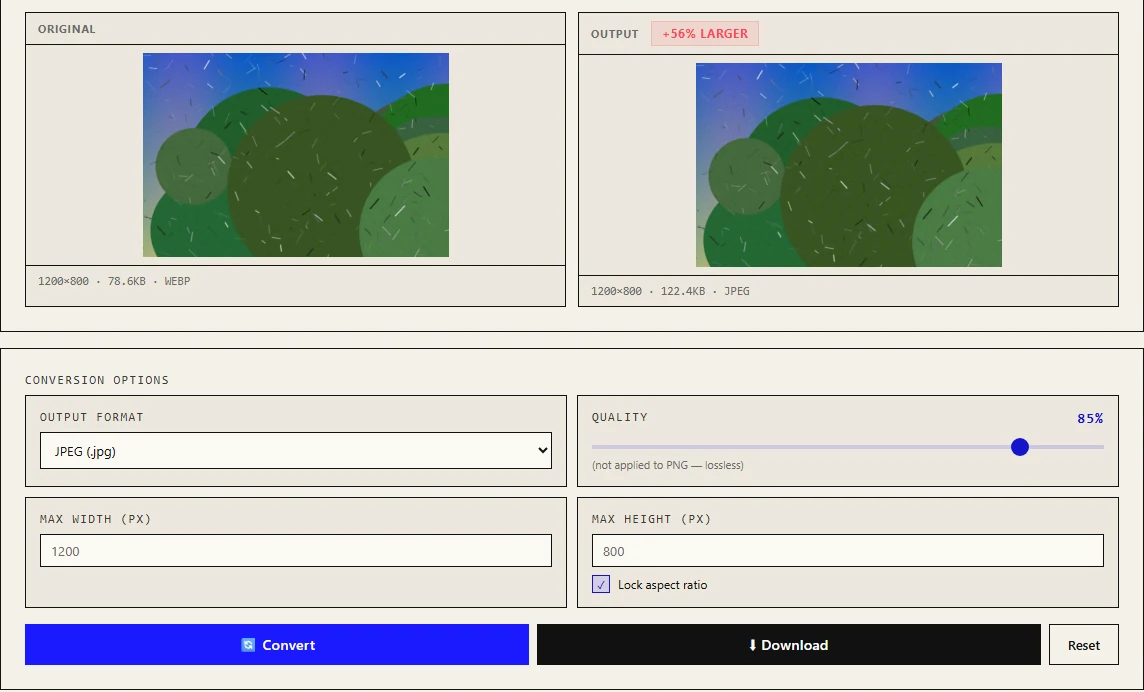
To convert a WebP to JPG, open the image converter, drop in the file, pick JPEG (.jpg), leave quality at 85% and press Convert, then Download. For PNG, pick PNG instead; the quality slider does nothing there because PNG is lossless. The browser decodes the WebP, draws it onto a canvas and re-encodes it with canvas.toBlob(), so the image never leaves your device.
That is the whole how-to. The rest of this post covers the three things people ask me about after they convert: why the JPG is bigger than the WebP, why a logo's background turned white, and why the photo lost its location data. All the numbers below come from my own runs, not from a format's marketing page.
When you actually need to convert a WebP
Every current major browser displays WebP. Can I use puts global support at about 97%, and WebP now has its own registered media type, image/webp, in RFC 9649. On the web, you rarely need to convert anything.
The trouble starts when a WebP leaves the browser. The situations I run into:
- A form or portal that only accepts
.jpgor.pnguploads, often a government or university site with an old file-type check. - Desktop software that predates WebP, or a print workflow that expects JPEG or TIFF.
- An image saved from a website "as WebP" that you want to drop into a slide deck or a document editor.
If none of these apply, keep the WebP. It is almost always the smaller file.
Why the JPG comes out bigger
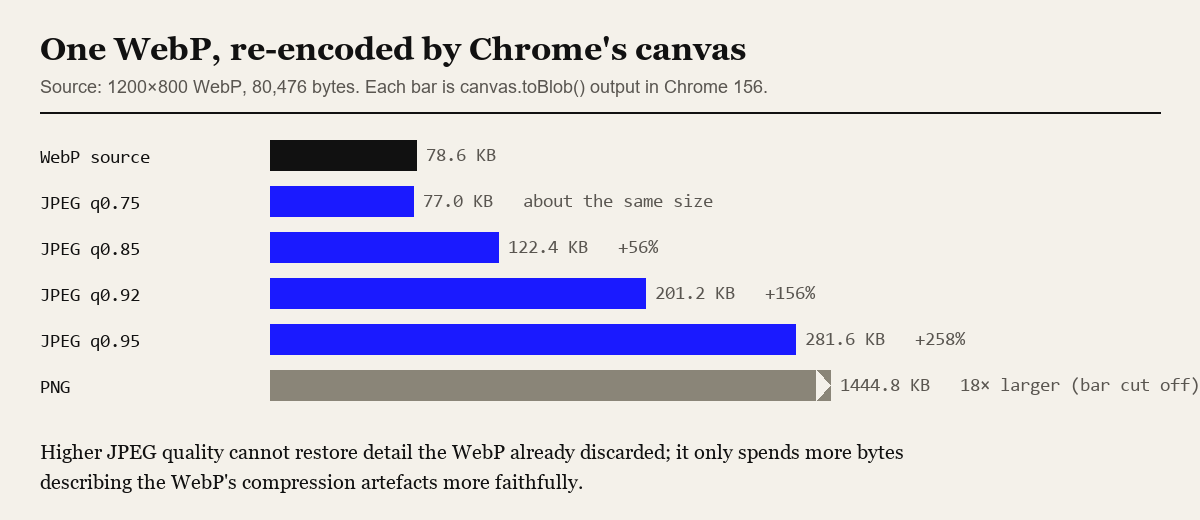
This surprises people more than anything else. I made a 1200 × 800 test photo (gradients, rounded "foliage" shapes, light grain), saved it as a WebP of 80,476 bytes, loaded it into the converter in Chrome 156, and exported it again at several settings. Here is what canvas.toBlob() returned:
| Output | Size | vs the WebP |
|---|---|---|
| WebP source | 78.6 KB | - |
| JPEG, quality 0.75 | 77.0 KB | about the same |
| JPEG, quality 0.85 (tool default) | 122.4 KB | +56% |
| JPEG, quality 0.92 | 201.2 KB | +156% |
| JPEG, quality 0.95 | 281.6 KB | +258% |
| PNG | 1,444.8 KB | about 18 times larger |
Two things explain the table. First, WebP's lossy mode simply compresses better than baseline JPEG. Google's WebP compression study found WebP files 25 to 34% smaller than JPEG at the same SSIM score. Second, the JPEG encoder does not know the WebP was already lossy. It sees the WebP's smoothing and block edges as real detail and spends bytes reproducing them. Raising the JPEG quality cannot bring back what the WebP threw away; it only describes the WebP's artefacts more faithfully.
The PNG row is the other extreme. PNG keeps every pixel exactly, including the noise, and photographic noise is what lossless compression handles worst. A PNG made from a photo is almost always the wrong choice unless the next tool in your chain needs lossless input.
What quality should you pick?
For a photo going into a document or an upload form, I use 85% and only drop to 75% when a size limit forces it. For anything with text, such as a screenshot or a scanned page, I go to PNG instead of chasing JPEG quality upwards. Keep in mind that quality numbers are not comparable between encoders or formats. JPEG 85 in Chrome, JPEG 85 in Photoshop and WebP 85 are three different settings that happen to share a number. MDN's toBlob() reference only promises a number between 0 and 1; what the browser does with it is up to the browser.
Resizing usually beats any quality setting. If the photo will be shown at 1200 pixels wide, typing 1200 into the converter's width box removes pixels you would never see. My PNG vs JPG vs WebP vs AVIF test has the numbers for the formats side by side.
Converting more than once: generation loss
A common worry is that every conversion makes the image worse. It depends on what happens between saves. I checked it with Pillow 12.3 on the same test photo, measuring PSNR against the lossless original (higher means closer; 99 dB means identical in my script):
- Saving the JPEG again with identical settings ten times: 35.43 dB after the first save, 35.42 dB after the tenth. The file stabilises because the same encoder makes the same decisions on its own output.
- Saving ten times with a one-pixel crop and resize between saves: 34.54 dB after the first round, 30.70 dB after five, 28.33 dB after ten. Each edit moves the 8 × 8 block grid, so the encoder throws away different detail every time.
- WebP at quality 80 converted to JPEG at 85: 34.7 dB against the original, compared with 36.1 dB for the WebP itself. Converting between two lossy formats always lands below the better of the two.
The practical rule: convert from the best original you have, and do your crops and resizes in the same pass instead of across several saves.
Transparency: why the background turns white
JPEG has no alpha channel. Every pixel needs a colour, so something has to happen to transparent areas. What happens depends on the code, and I checked both cases in Chrome:
- A canvas starts out as transparent black. Encode it straight to JPEG and the transparent pixels come out as
rgb(0, 0, 0). I drew nothing on a 4 × 4 canvas, exported it as JPEG and read back a pixel: 0, 0, 0, 255. - The site's converter paints the canvas white before drawing the image whenever the output is JPEG, so transparent areas become white instead of black.
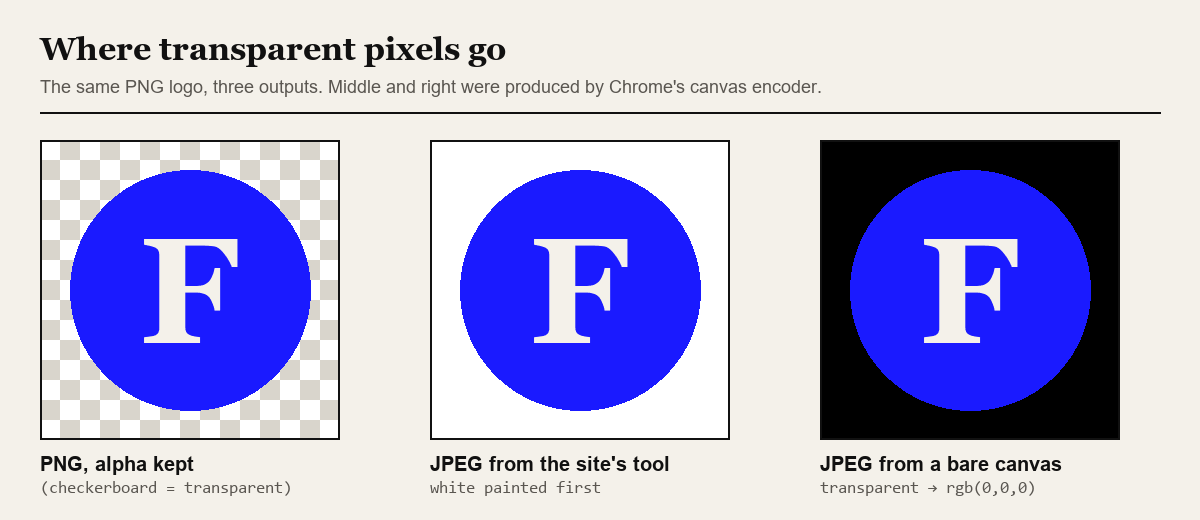
If the logo is going on a white page, white is fine. If it is going on a dark header, a JPEG is the wrong format; choose PNG or WebP, both of which keep the alpha channel. The PNG specification (third edition, a W3C Recommendation since June 2025) defines that alpha channel; WebP supports it in both lossy and lossless modes according to Google's WebP documentation.
What the converter does not keep
Redrawing through a canvas is simple and private, and it has side effects you should know about:
- Metadata is dropped. A canvas holds pixels only, so EXIF data (camera, capture time, GPS location) and embedded copyright fields do not reach the new file. That is useful before you post a phone photo publicly and a problem if you rely on those fields.
- Animation is lost. An animated WebP or GIF contributes a single frame.
- Colour profiles are not carried over. The browser converts the image for display before it reaches the canvas. For ordinary sRGB images you will not notice; for wide-gamut photography, use a desktop editor.
- Very large images can fail on phones. MDN notes that iOS devices limit a canvas to 4,096 × 4,096 pixels. A 12 MP phone photo (4032 × 3024) fits; a 48 MP one does not, and the drawing silently fails.
- Unsupported output falls back to PNG. If a browser cannot encode the requested type,
toBlob()returns PNG. Chrome 156 did exactly that when I asked it forimage/avif. The converter names the download after the format you chose, so if a ".webp" from Safari looks suspiciously large, check what is actually inside.
Which format to choose
| Format | Compression | Transparency | Use it for |
|---|---|---|---|
| JPEG | Lossy | No | Photos that must open anywhere: email, forms, print shops |
| PNG | Lossless | Yes | Screenshots, logos, text, anything you will edit again |
| WebP | Lossy or lossless | Yes | Web pages, where it is usually the smallest of the three |
AVIF and GIF are missing on purpose: the converter cannot write them. MDN's image format guide covers the full list if you need it.
Frequently asked questions
How do I convert a WebP image to JPG for free?
Open the image converter at faizzyhon.com/Tools/image-converter.html, select or drop the WebP file, choose JPEG (.jpg) as the output format, set the quality (85% is a sensible default), press Convert, then Download. The browser does the conversion; the file is not uploaded.
Why is my JPG bigger than the WebP I converted?
WebP usually compresses better than JPEG, and the JPEG encoder has to spend bytes reproducing the WebP's own compression artefacts. In my Chrome test a 78.6 KB WebP became a 122.4 KB JPEG at quality 85. Lower the quality to around 75, or resize the image, if size matters.
Can I keep a transparent background when converting to JPG?
No. JPEG has no alpha channel. The converter paints a white background before encoding, so transparent areas become white. Choose PNG or WebP as the output if you need transparency.
Does converting WebP to JPG or PNG remove metadata?
Yes. The image is redrawn on a canvas, which only holds pixels, so EXIF data such as camera model, capture time and GPS location is not written to the new file.
Related tools and reading
If the destination wants a PDF rather than an image, the Image to PDF tool combines several pictures into one document, and how browser image-to-PDF conversion works explains its limits. For the privacy side of doing all this locally, see why client-side developer tools are better for privacy.